

New MSPs receive a free Autopsy with their Petra trial. If the Autopsy finds no compromises, you receive another free Autopsy slot to use on a different tenant. For a full explanation of how Petra Autopsy works and how it compares to Petra Active and Petra Scan, see Active vs. Autopsy.
What the Report Includes
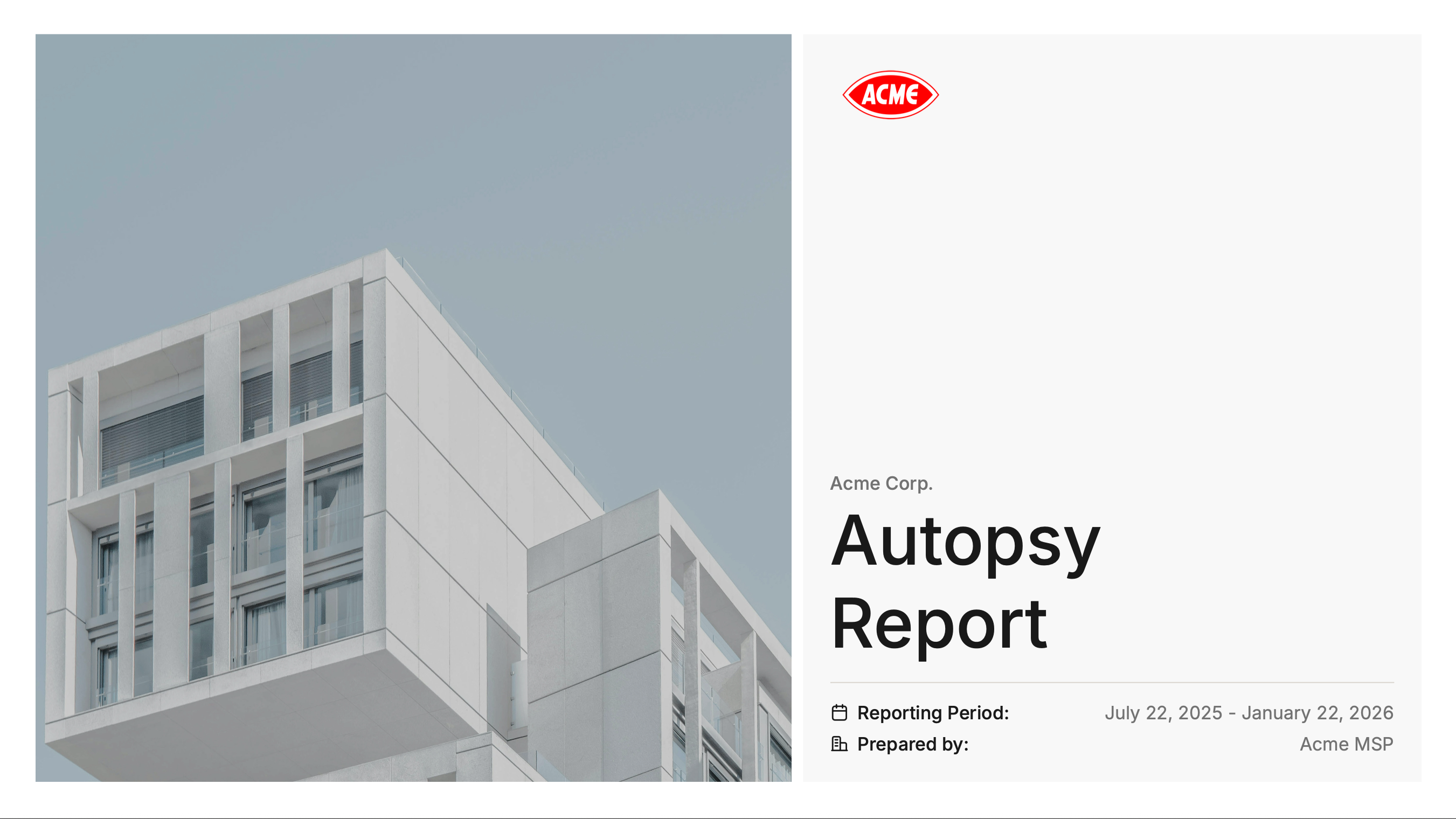
The Prospecting Report is structured to walk a prospect through real findings in their own environment:- Cover Page: White-labeled with your organization’s logo, name, contact email, tenant name, and reporting period.
- Why M365 Protection Matters: An overview of the M365 threat landscape and why dedicated protection is critical.
- How to Evaluate Your Current M365 Security Provider: Five key questions to help prospects assess whether their current security stack is adequate (detection speed, response time, employee disruption, attacker activity visibility, phishing removal).
- What Threat Hunting Was Performed: How many logs were analyzed, which M365 services were covered, and the threat-hunting techniques used (impossible travel detection, proxy use analysis, behavioral baselining).
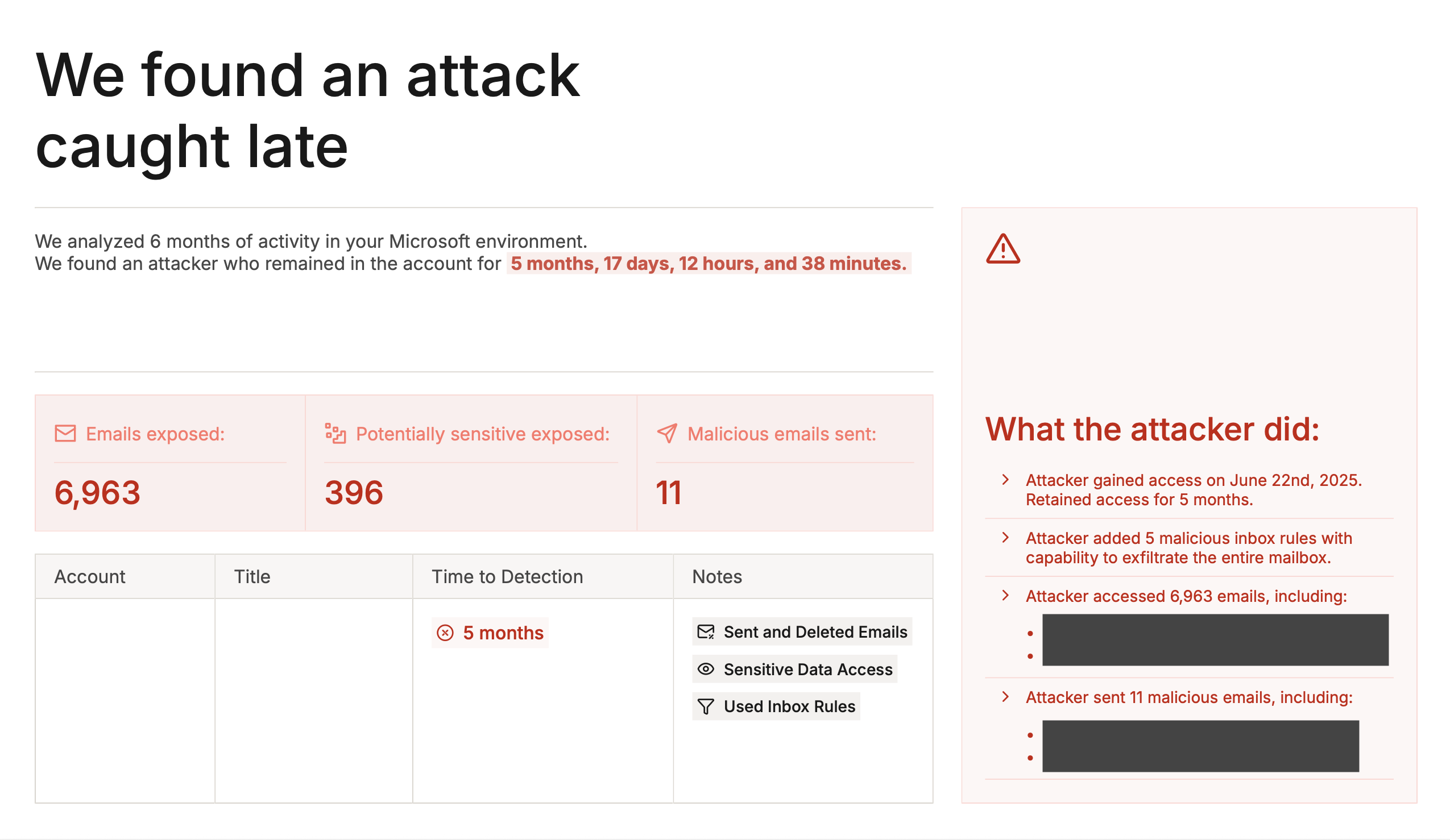
- Incident Details: Each discovered incident with full forensics, including:
- Whether the compromise was historical or an active attacker still in the account
- Blast radius (emails accessed, documents accessed, emails sent by the attacker, documents modified or deleted)
- Persistence mechanisms (inbox rules, app consents)
- Phishing evidence (phishing emails found, sender addresses, subject lines)
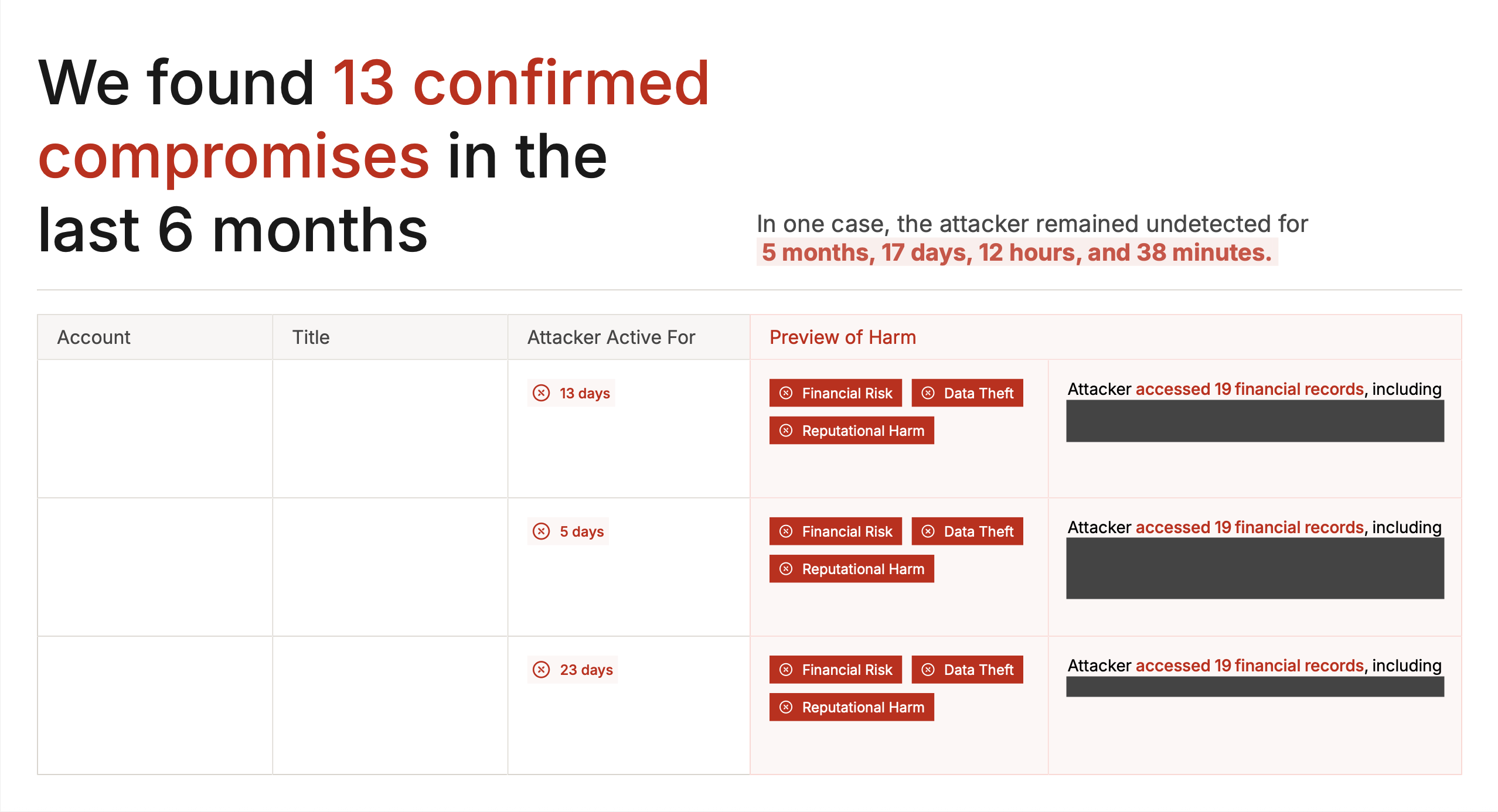
- Time-to-detection badges showing how long the attacker was active
- Incidents Table: A summary table of all incidents with key metrics at a glance.
- “What Should Have Happened” Timeline: A hypothetical timeline showing how Petra would have caught and responded to the highlighted incident in real time, contrasted against what actually happened.
When the Report Is Generated
The Prospecting Report is generated automatically once the Petra team completes the Autopsy investigation for a tenant. No action is required on your part — when all incidents have been triaged and the analysis is complete, the report is created and you are notified.How to Access the Report
Via Email
When the Autopsy is complete, an email is sent with the subject “Petra Autopsy Complete for [Tenant Name]”. The email includes:- A summary of what Petra found (number of prior compromises and active attackers)
- Details on each incident discovered
- A link to the Petra dashboard where you can download the full PDF report
Via the Incidents Page
After the Autopsy completes, a “Your Autopsy Report is Ready” banner appears at the top of the Incidents page for the tenant. Click the Download Report button on the banner to download the PDF. This banner is visible for 7 days after the report is generated.Via the Reporting Tab
All Prospecting Reports are permanently available in the Reporting tab under the Automated Reports sub-tab. The Autopsy Reports section lists every generated report with the tenant name and date — click Download next to any report to get the PDF. This is the same tab where previously generated automated monthly tenant report ZIPs are stored. See Downloading Previously Generated Reports for more on that.Who Receives the Autopsy Complete Email
The Autopsy complete email is sent to:- Your organization’s notification recipients configured for that tenant (see Update Incident Notification Methods)
- Organization admins during trial
Using the Report for Sales
The Prospecting Report is purpose-built for prospecting and closing deals. Here are some ways to use it:- Client meetings and QBRs: Walk through the findings to show clients what attackers have done in their environment and what their current provider missed.
- Prospect pitches: Run an Autopsy on a prospect’s tenant and use the report to demonstrate Petra’s value with real data from their own environment.
- Competitive displacement: The “How to Evaluate Your Current M365 Security Provider” section and “What Should Have Happened” timeline directly highlight gaps in existing solutions.
- Urgency creation: Active attackers found during the Autopsy require immediate action, creating natural urgency to deploy Petra.
Customizing Report Branding
Prospecting Reports use the same white-label branding as tenant reports. To update the logo, organization name, or contact email that appear in the PDF, go to Settings > Branding. See Customizing Report Branding for details.Additional Sales Resources
Visit the Marketing Hub in the Petra dashboard for additional sales materials, including:- Autopsy One-Pager: A one-page overview of Petra Autopsy capabilities
- Example Prospecting Report: A sample report you can share before running an actual Autopsy
- Forensic Analysis One-Pager: Overview of Petra’s forensic analysis capabilities
- Threat Intel presentations: White-label ready slides on ITDR capabilities