

Phishing through a fake Microsoft sign-in page (AiTM attack)
This is the vast majority of compromises we see. The user was phished to a page that looks exactly like Microsoft’s sign-in. As they type their password (and approve an MFA prompt, if MFA was enforced), an adversary-in-the-middle (AiTM) toolkit sitting between them and Microsoft programmatically relays the credentials in real time. Microsoft issues a valid session to the attacker, not the user. There are two variants, depending on whether MFA is enforced.Password and MFA stolen (AiTM attack)
What the logs look like:- A successful login for the user from an unfamiliar IP, often a datacenter, hosting provider, or residential proxy.
- A clear Login: Pending MFA Challenge entry immediately followed by a Login: Successful entry from the same unfamiliar IP. That is the AiTM toolkit relaying the user’s MFA code to Microsoft in real time.
- The login arrives close to the time the user says they clicked a link in an email, Teams message, or SMS.
- The user’s normal IPs and devices continue to work alongside the attacker’s session, which is why this often goes unnoticed until the attacker takes a visible action (inbox rule, outbound phish, etc.).
- MFA shows as satisfied on the attacker’s login. That is by design of the attack: the user approved it.
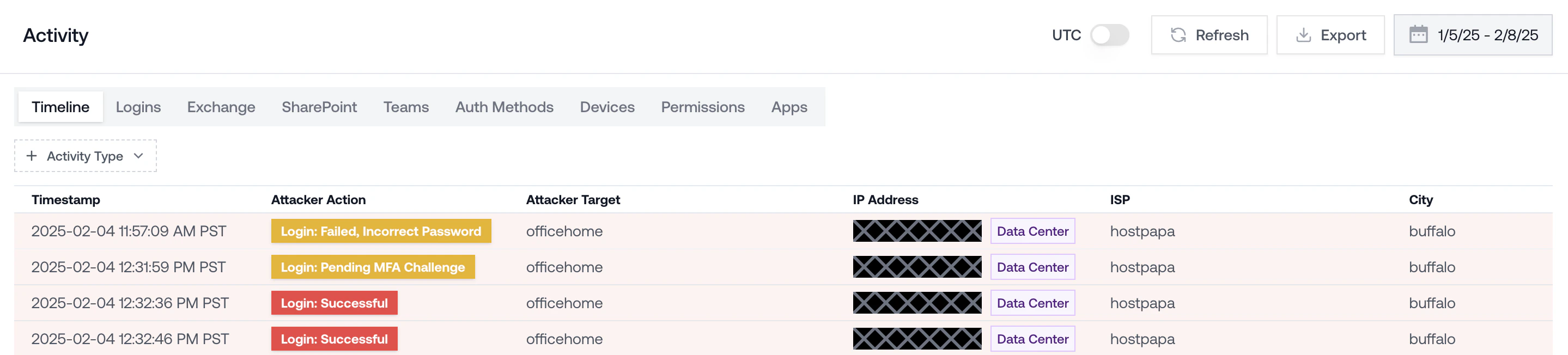
“I don’t see MFA prompt logs, but the user had MFA.” Two common reasons: MFA wasn’t actually enforced on the account at the time (check Conditional Access policy history), or Microsoft is running behind on log delivery. Microsoft delays can stretch a week or two. Check back, and treat the account as compromised in the meantime.
Password stolen, MFA not enabled / enforced (AiTM attack)
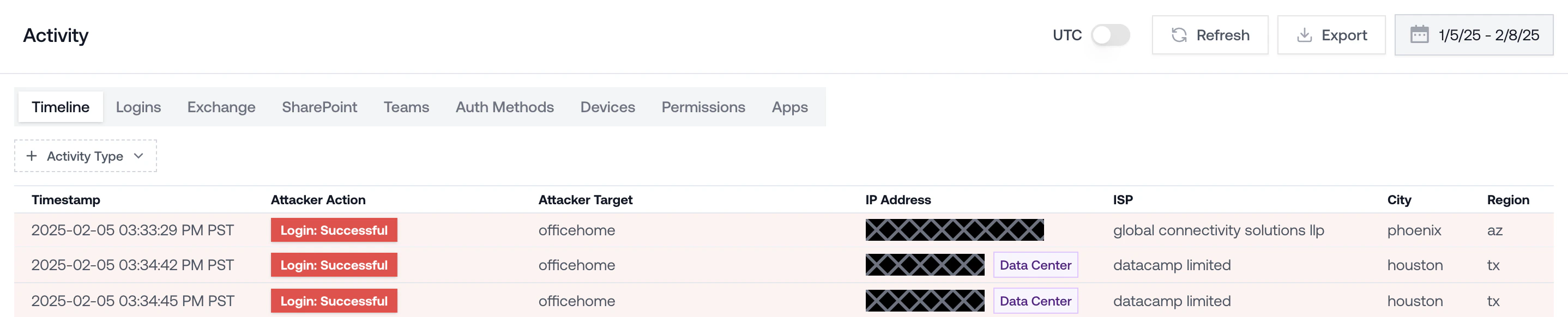
The user was phished to a fake Microsoft sign-in page, but MFA was not enforced on the account, so the attacker only needed the password. They logged in directly after capture. What the logs look like:- A successful login for the user from an unfamiliar IP.
- No MFA step in the authentication chain.
- The login arrives close to the time the user says they clicked a link.
Device code phishing
The attacker initiated a device code authentication flow and tricked the user into completing it on their behalf. The user received a message (email, Teams, SMS) asking them to go tomicrosoft.com/devicelogin and enter a short code, often framed as “verify your account” or “set up a new device for IT.” When they did, they signed in to the real Microsoft page, satisfied MFA on their own device, and handed the attacker a valid token.
This attack sidesteps URL-bar training because the sign-in page is genuine.
Device code phishing is unique because it captures the user’s existing session. If the user was already signed in to Microsoft in their browser, pasting the code and confirming the request authenticates the attacker without prompting for a password or MFA at all. And because the token inherits the user’s active session, attacker activity can appear to originate from the user’s registered device (if the original session was tied to one). The mismatch to watch for is a known device name paired with an unfamiliar IP on post-auth actions.
What the logs look like:
- A successful login with authentication protocol Device Code (surfaces as
authenticationProtocol: deviceCodein raw Entra sign-in logs). - The client app on the sign-in is the one the attacker chose when initiating the flow. Often a first-party Microsoft app like Microsoft Authentication Broker, Azure CLI, or Visual Studio Code.
- MFA shows as satisfied, either because the user approved it on their own device, or because their existing session covered it and no prompt fired.
- The originating IP is attacker infrastructure, not the user. Recent campaigns route through serverless platforms (Vercel, Cloudflare Workers, AWS Lambda) and hosting providers like Railway and HZ Hosting.
- A common signature: an
AADSTS50199event followed by a successful device code sign-in within about 5 minutes on the same user. The 50199 is the pause while the user pastes the code. - Follow-on actions may show the user’s registered device name but come from an unfamiliar IP. Known device plus unknown IP on post-auth events is the tell.
- Within minutes of the sign-in: a new device registration (the attacker minting a Primary Refresh Token for long-term persistence), Microsoft Graph reconnaissance, and new inbox rules, often with names made of only special characters.

Password stolen without phishing (password spray or credential stuffing)
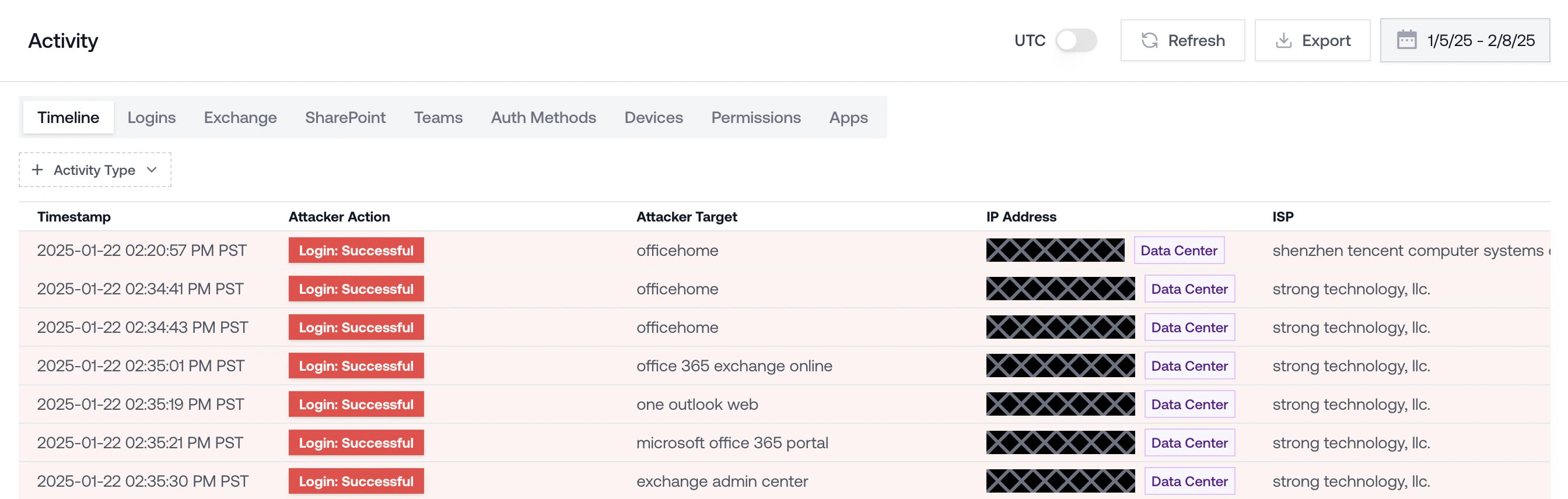
The attacker obtained a working password without the user ever landing on a phishing page. The password typically comes from an automated password spray, credential-stuffing against leaks from other breaches, or a malware infostealer on the user’s device. With no MFA enforced on the account, a single successful guess was all the attacker needed. What the logs look like:- A clean, successful login from an unfamiliar IP with no MFA step in the authentication chain.
- Preceded by a run of failed password attempts against the same user (and often other users in the tenant) from the same IP or a closely related range. That fan-out across users is the spray signature.
- No phishing email or click in the window around the compromise. The user did nothing to trigger it.
All malicious activity from the user’s own device (endpoint compromise)
Petra does not explicitly protect endpoints, so you will not usually see these caught by Petra. When we do catch them, it is usually by accident: a compromised endpoint starts taking actions that look suspicious in M365, and Petra flags the downstream behavior. Identity compromises are far more common than endpoint compromises in M365 environments today, but endpoint still happens when malware gets onto a user’s laptop. What the logs look like:- All malicious activity comes from the user’s normal IP and device. There is no attacker IP to point at.
- No suspicious logins from outside infrastructure. The attacker is acting through the user’s own session.
- Suspicious actions appear inside the authenticated session: inbox rule creation, OAuth app consent, unusual file access, or outbound phish sent from the user’s account.